Field Extraction from Applications: OCR, Validation, and Manual Review
We show how to set up field extraction from applications: choose OCR, validate the data, send borderline cases for manual review, and reduce errors.
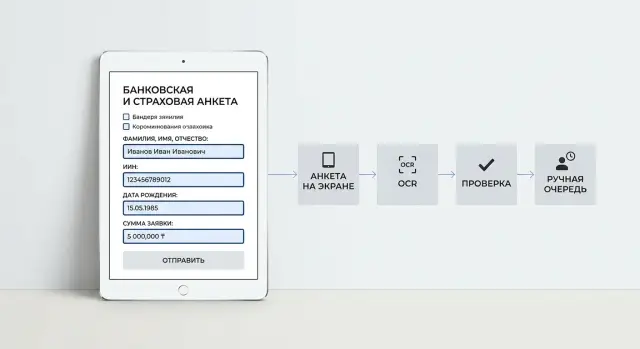
What actually breaks in an application
The same form almost never arrives in the same shape. One customer uploads a clean PDF from their account, another sends a scan with streaks from an old MFP, and a third takes a phone photo of the page on a kitchen table at night. For the system, that is no longer “one application” but several different tasks with different input quality.
Phone photos often hurt recognition more than people expect. The camera catches glare on laminated fields, shadows from a hand, page skew, and blurry text at the edges. If the document is shot at an angle, lines drift, and small fields like the issue date or contract number are read incorrectly by OCR.
The problem is not only the image. Applications contain many characters that look almost identical: 0 and O, 1 and I, 8 and B, Cyrillic “С” and Latin “C”. On a printed form the difference is easy to see, but after compression, messenger forwarding, or rescanning, it often disappears.
The biggest trouble comes from fields where a single wrong character changes the meaning completely. In Kazakhstan, this is easy to see with IIN. If OCR swaps one digit, the application may not find the customer in the database, may fail a cross-check with another system, or may land in the wrong queue. Then the operator spends time not on the substance of the case, but on finding where everything broke.
The process itself suffers too. Say an insurance claim has the name recognized correctly, but the IIN contains one error. On the surface the document looks “almost right,” but the system cannot match it to the policy, contact history, and validation rules. One digit stops automation, the application stalls, and the response time grows.
Usually the failure does not happen in just one place. First comes a bad photo, then OCR adds noise, then similar characters break one critical field, and that one field breaks the whole route.
Which fields to start with
If you are launching field extraction from applications, do not try to pull everything from the form at once. In the beginning, 10–15 fields are enough — just the ones the application cannot move past without. That makes it easier to reduce errors and faster to see where OCR and validation rules fail.
First separate mandatory fields from the ones that are simply nice to have. Mandatory fields are used to find the customer, verify identity, cross-check the contract, and pass the document to the next system. Secondary fields are usually needed for analytics, rare scenarios, or manual reading.
For the first version, a set like this is usually enough:
- Full name
- IIN
- date of birth
- contract or application number
- completion date
This is often enough to find the customer, check the data format, and decide whether the document can move forward without a person. For an insurance claim, a policy number is sometimes added to the list. For a banking form, a phone number may be added if it is used for verification or follow-up.
Address, free-text comments, doctor’s notes, incident descriptions, and long text blocks are better left for later. They are more often noisy, written in different ways, and rarely affect the first step of the workflow. The team spends a lot of time cleaning them up, with little benefit at the start.
The rule is simple: if a field does not affect the decision to “accept, reject, or send for manual review,” do not make it a priority. Start with a short field list, test accuracy on real scans and photos, and then expand the schema.
How to build the process step by step
Working field extraction starts not with OCR, but with careful file intake. The service should save the original unchanged, assign it an ID, and record basic data: upload channel, time, file type, and number of pages. If later an operator or auditor wants to inspect a disputed case, the team will have an exact copy of what the customer sent.
Next, the system prepares the image for reading. It straightens the page, removes extra borders, fixes contrast, and, if needed, splits a multipage PDF into separate sheets. On phone photos, this often helps more than switching OCR engines.
The next step is OCR with coordinates. It is important to get not only text, but also the location on the document: where the surname is, where the policy number is, where the date is. Coordinates help a lot when the same word appears in several places or the form looks similar to another one but the fields are placed slightly differently.
After recognition, the system assembles the fields. For stable forms, templates and rules are usually enough: take the text from the right area, trim spaces, and convert the date to one format. For more complex forms, where people write by hand or enter data in the wrong place, a model is used to pick the right fragment from context.
Then come the checks. The system should not just return a value; it needs a clear status. Usually four options are enough: “ok” if the format and meaning match, “warning” if the field was read but confidence is low, “review” if rules found a conflict, and “missing” if the field is empty.
It is better to send only the questionable parts to the manual queue, not the whole document. The operator needs the source image, the highlighted zone, the OCR text, the suggested value, and the reason the system is unsure. If OCR reads one digit in an IIN incorrectly on a loan application, the operator can fix one character in 10 seconds instead of rereading the entire file from scratch.
How to choose OCR for scans and photos
Good OCR is rarely chosen from a demo. For field extraction, what matters more than the presentation is how the service reads your documents. The same OCR can handle a clean PDF almost flawlessly and perform much worse on a phone photo of a form with a shadow, a blue stamp, and a handwritten field.
Build your own test set in advance. It should include office MFP scans, phone photos, and PDFs. PDFs are also better split into two types: files with digital text and raster copies. If you mix everything into one sample, the average accuracy will look decent, but failures will start in real traffic.
What to test separately
Printed text and handwritten fields should be treated as different tasks. Date of birth, IIN, phone number, and contract number are usually read better because their format is strict. Handwritten full names, addresses, and free comments produce a very different level of errors.
Language also cannot be checked “on average.” For Kazakhstan, strong Russian alone is not enough. Kazakh and Latin script must be included in the same set: customer names, addresses, email, car make, company name. If OCR confuses “Ә” with “A” or drops a character in a Latin policy number, the error moves further down the chain.
Measure difficult areas separately: stamps and seals over text, tables with narrow columns, fields near the page edge, glare, shadows, blurry photos, small print, and poor copies. Do not look only at overall accuracy. Take, for example, 200 banking and insurance applications and calculate the share of documents where OCR correctly read the critical fields in full. If the service makes one mistake in an IIN digit, an amount, or a date, that document still goes to manual review.
If you have an LLM after OCR for normalization and checks, do not use it to cover weak recognition. A model can fix date formatting or bring an address into one style, but it cannot guess digits that are not in the source text. First you need OCR that holds up on your scans, photos, and PDFs.
How to normalize fields after OCR
After OCR, the text is almost never ready to use. The system may read the same date in three different forms, add an extra space in an IIN, or confuse “0” and “O”. In practice, normalization often matters more than the choice of OCR model.
A common mistake is cleaning all fields the same way. Dates, IIN, BIN, addresses, and full names need different rules. It helps to store three values for each field: original, cleaned, and verification status.
Convert dates to one format, usually YYYY-MM-DD. If OCR returns “12.03.24”, “12/03/2024”, and “12 03 2024”, the output should contain one record: “2024-03-12”.
Remove extra spaces, different kinds of dashes, and random characters around the field, but do it carefully. In an address or apartment number, an extra character may actually be part of the data.
IIN and BIN are best checked by length and mask before any later steps. If the value is not 12 digits, contains letters, or is missing a character, the field should be marked as invalid right away.
Split full names into parts only when there is a clear rule. If the form has separate boxes for surname, first name, and patronymic, the split is safe. If OCR returns one line without clear boundaries, it is better to keep the full name as is.
The original value should be stored next to the cleaned one. On manual review, the operator needs to see what came from the document and what normalization changed. Otherwise, disputed cases take longer to resolve, and errors are harder to explain in an audit.
For example, on an insurance form OCR may return the IIN as “940101-300123 ” and the date as “1 2.0 3.2024”. The normalizer removes the noise, checks the format, keeps the raw value, and passes on only what can be trusted.
How to add checks before the manual queue
The manual queue grows quickly if you send everything there. It is better to filter out simple cases earlier: empty fields, obvious typos, mismatches between pages, and weak recognition. Then the operator sees only what really cannot be solved automatically.
Start by checking the mandatory fields. If an application does not have an IIN, policy number, amount, or submission date, the system does not need to guess. Such a document gets an уточнение or manual review status right away. It is a simple rule, but it removes a lot of noise.
Then compare related values. On an insurance form, the coverage amount on the first page should match the amount in the attachment. On a loan application, the date of birth should not differ between the application and the ID scan. Even a one-digit difference usually points not to a complex case, but to an OCR mistake or a bad photo.
It is useful to keep OCR confidence at two levels: by word and by field. If the model is unsure about one letter in a surname, that is acceptable. If the entire IIN is built from fragments with low confidence, the document should not move on without review.
Simple formal tests also work well. Check dates with a regular expression and common sense, verify amounts against an allowed range, run IIN, BIN, and contract numbers against patterns, compare insurer, bank, and branch names against a reference list, and mark empty or too-short values immediately.
After that, calculate the overall application risk. Instead of one binary flag, it is more useful to assign points for each issue: 40 for a missing IIN, 25 for a mismatch in amounts, 15 for low OCR confidence, 10 for a strange date. If the total goes over the threshold, the document goes to the manual queue. This approach is easier to tune and explain to the team.
How to organize manual review without chaos
The manual queue is not there so the operator can retype the whole form. It is there for the places where the system is uncertain: OCR misread the IIN, a signature covered the date, or the amount failed the format check. If you send the whole document to a person, the team will quickly get stuck doing the same kind of work over and over.
A good review screen shows only the disputed fields. The operator needs the recognized value, the confidence score, and a small fragment of the page around the field. When a person sees the right part of the form immediately, they fix the field in a few seconds and do not have to scroll through the whole PDF.
On a loan application, it looks simple. The system is confident about the full name and date of birth, but unsure about the phone number and IIN. Only those two fields go to the queue. The logic is the same with an insurance form: if the policy number was read correctly but the event date was recognized incorrectly, the operator opens only the date and sees the relevant section of the page.
Do not ask people to re-enter the document from scratch. Full retyping rarely helps and more often hides the problem in OCR, the form template, or the validation rules. The narrower the operator’s task, the fewer new errors appear.
It helps to save not only the corrected value, but also the reason for the fix. Usually a few short tags are enough: “character misread,” “field covered by stamp or signature,” “photo is blurry,” “customer filled the field in an unusual way,” “validation rule is too strict.” These tags quickly show what needs to be fixed next: the model, image preprocessing, or a business rule.
Each task should have a simple status and response time. Three statuses are often enough: “new,” “in progress,” and “done.” For a banking form, a 15-minute response time may be enough; for an insurance claim, 2 hours may work. That keeps the queue from spreading and helps the team know what to do right now.
Example: a loan application and an insurance form
A customer sent a phone photo of a loan application and attached an ID separately. In another case, an insurance form arrived as a scan from a branch. Both documents went into the same pipeline, where processing follows one scheme: OCR, normalization, checks, and only then manual review.
OCR immediately extracted the full name and IIN. The phone number went worse: there was glare on the photo of the form, and one digit simply disappeared. If such an application is allowed to move forward without checking, the call center will not reach the customer, and the customer will have to fill out the form again.
The date of birth gave another signal. On the first page of the form it said 14.03.1989, but in the attached document the system saw 13.03.1989. There is no need to guess here. The field comparison rule marked the mismatch and sent only that packet to the operator, not the whole day’s batch of applications.
The operator opened the card and saw not the entire document, but only the disputed parts: the phone number, the date of birth, and the clipped text fragments from which OCR took the values. That makes manual review much faster. The person does not retype the application from scratch, but fixes two fields and confirms the result right away.
After the correction, the application moves along the usual route: scoring, limit checks, and creation of a record in the CRM or insurance system. No duplicate entry is needed. And that matters. When the team removes unnecessary manual copying, it loses less time and makes fewer new mistakes after the fix.
A good working setup looks like this: the machine takes everything it reads confidently, rules catch contradictions, and a person looks only at uncertain cases. Then data validation does not slow the flow down or turn every application into a manual review.
Where teams most often go wrong
Teams rarely stumble over one big failure. Usually the process breaks because of several small decisions that seem reasonable at the start.
The first mistake is trying to pull every field from the application at once. It looks like a future-proof plan, but in reality it increases complexity. If a bank needs full name, IIN, phone number, amount, and date for the first decision, there is no need to extract the registration address, marital status, place of work, and dozens of secondary fields in the same sprint. Greed at the start almost always creates more noise than value.
The second mistake is not having a reference set of documents. Without it, quality debates go in circles. One person says OCR is weak, another blames the rules, and a third thinks the problem is a bad scan. There is no way to check. You need a small but honest set: good PDFs, crumpled photos, shadows, cropped pages, old form versions, handwritten notes.
Measurements are also better separated from the start. Count text recognition accuracy separately, field parsing by rules separately, what goes to the manual queue separately, and the final share of documents without errors separately. Otherwise one pretty number will hide the weak spot.
The third mistake hits the budget. The team calculates the cost of OCR and forgets the cost of manual review. Then it turns out that even 5% of disputed applications create hundreds of cards a day. If one operator spends 3 minutes per document, the queue starts costing noticeably more than the automatic layer itself.
Another common problem is versioning. Forms change, the OCR model is updated, and normalization rules are adjusted on the fly. If you do not keep versions of templates, models, and rules, the team will not understand why yesterday the “issue date” field read normally but today dropped by 12%.
This is especially important for insurance and banking forms. One new branch template, one change in field order, and the metrics shift. If you already have audit logs and strict step tracing, the review takes hours. If you do not, the problem drags on for weeks.
A short checklist before launch
Before the pilot, it helps to stop for a day and check the basics. Most failures appear not in the model, but in the data, queues, and unclear rules when the document is sent to a person.
Collect real examples for each form type. Not five perfect PDFs, but a live sample: wrinkled scans, phone photos, old form versions, partially filled applications. If there are no examples for one form type, the system will almost certainly start mixing up fields in the first week.
Count the share of incoming formats. Photos, scans, and PDFs behave differently. If 60% of the flow comes in as photos and you tested mainly PDFs, OCR for forms will show a nice demo score and weak real-world results.
Set confidence thresholds in advance. For each field, decide where the system accepts the value on its own and where it sends the document for manual review. Escalation reasons should also be named clearly: low confidence, date conflict, empty mandatory block, strange IIN, poor image quality.
Check whether you can see metrics across the whole document path. You need at least processing time, manual review share, the percentage of documents with validation errors, and a list of the most common return reasons. Without that, you will not know what exactly is breaking field extraction.
Prepare a fix plan for the first common errors. For example, if OCR regularly confuses 0 and O in a policy number, the team should already know who changes the rule and how: analyst, engineer, or operator. A short cycle works well: find the error in the morning, fix the rule or dictionary during the day, and test a new sample in the evening.
One simple test shows a lot. Take 100 documents from the real flow and see how many applications got through without manual intervention, how many went to the queue, and how many came back with wrong fields. After that run, weak spots become obvious right away.
What to do next
Do not try to automate all forms at once. Start with one application type and a small set of fields the process cannot move without: IIN, full name, date of birth, contract number, amount, submission date. That makes it easier to see where exactly everything breaks: image quality, OCR, normalization, or checks.
One overall accuracy number says almost nothing. It is much more useful to look at the stages separately: how many characters OCR reads without errors, the accuracy of each field, what percentage of applications pass without an operator, how many documents go to manual review, and how much time an employee spends on corrections. This breakdown quickly shows the weak point. OCR may read the form fine, but validation may often reject addresses because the rules are too strict.
With rules, it is better not to overcomplicate things. For dates, IIN, policy numbers, amounts, and codes, templates, dictionaries, and simple checks are usually enough. An LLM is useful where text is written freely: description of the insurance event, loan purpose, customer comment, or an unusual address. If a field can be checked with a regular expression and a reference list, do it that way. It is cheaper and easier to debug.
If your team compares models from different providers or must keep data in Kazakhstan, a unified access layer like AI Router is convenient. The service gives you one OpenAI-compatible endpoint for working with models from different providers without changing the SDK, code, or prompts. For tasks where data residency and low latency matter, airouter.kz also offers hosted open-weight models on its own GPU infrastructure in Kazakhstan.
After the pilot, do not delay basic controls. Add audit logs, PII masking, and key-level limits. People often ignore these in demos, but in production those gaps end up costing more than the launch itself.
If, after a couple of weeks, the team cannot name the three fields with the lowest accuracy and the share of applications that go to manual review, the system is still too early to expand.