AI Content Labels in a Product: Where to Place Them and What to Store
AI content labels in a product help show the source of text honestly, keep generation traces, and avoid cluttering the screen with unnecessary details.
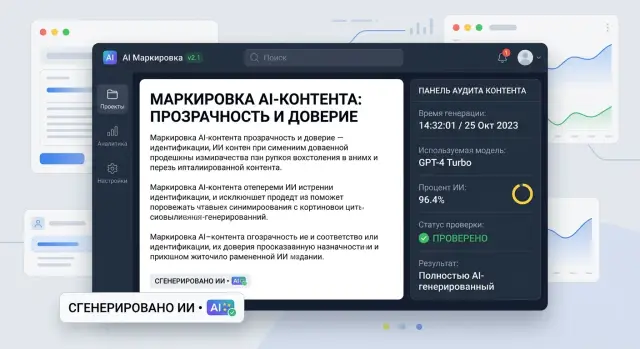
Why confusion appears without labeling
When AI writes the text and the interface does not show it, the user makes a simple assumption: a person wrote the answer, or the company approved every sentence by hand. That is why any mistake looks less like a model issue and more like an official product response.
Imagine a chat inside an app. A person asks about a refund, a limit, or service terms. If there is no clear label nearby, they cannot tell whether they are looking at a generated answer, a template, or a message from a support agent. They copy the text, argue with support, and refer to "your answer." For them, that is completely logical.
Because of that, the cost of even a small mistake rises quickly. Support spends time on a disputed case because first it has to figure out who actually wrote the text. Legal and compliance ask for the source of the answer and its status. The product team searches for the right generation among logs, versions, and edits.
The most frustrating part is that the argument often starts over something minor. The model used a tone that was too confident, skipped a disclaimer, or mixed old and new data. Without labeling, it looks like ordinary interface text. The user does not see the line between "generated" and "reviewed."
For companies with strict audit requirements, this is especially noticeable. In a bank, telecom, or public-sector product, it is not enough to simply answer the customer. Later you also need to prove where the text came from, which system created it, and why it reached the interface. If there is no label, every such question turns into a manual investigation.
There is an internal cost too. One person looks for the conversation, another tries to identify the prompt version, and a third checks the model and response time. The incident itself may be small, but the review takes hours because the team cannot quickly separate an AI answer from ordinary text.
A clear label does not improve quality by itself. It does something else: it explains the source of the answer right away and lowers false expectations. It is a simple step that saves time for the user, support, and the people who later review disputed cases.
Where to place the label in the interface
The label should be placed where a person reads, copies, sends, or approves the result. If the user sees the answer but not that a model generated it, they can easily take a draft for the final text. That is exactly when confusion starts.
Good labeling does not hide in the footer, help center, or a tiny tooltip on an icon. Users rarely go looking for the source of the text. They look at the content block itself, and the label should be next to it.
In chat, it is better to place the label right next to the model’s answer or directly below it. Not in the top bar of the screen and not in settings. If a person scrolls through a long conversation, each AI answer should have its own visible marker. Otherwise, after five messages it becomes unclear where a human wrote and where the model did.
The same logic applies to forms and editors. If the system created a draft email, a product description, or an internal note, the caption Generated by AI should appear right below the text or above the editing field. When the user starts editing the text manually, the status should update. For example: first Draft from AI, then Changed by a person.
Documents often fail in the same place: the label is visible in the editor, but disappears from the change history. That is a bad approach. If AI added a paragraph to a contract, a comment in CRM, or a new version of an internal document, the marker should stay in the revision log. Then the team can see not only the result, but also the origin of the fragment.
Also check export separately. If a user sends the material by email, exports it to PDF, or passes it to another team, the label should not disappear on the way. Otherwise, inside the interface you have an AI text, and outside it becomes an ordinary document with no trace of origin.
A simple rule works well: the label should be next to the answer in chat, next to the AI draft in a form or editor, in document history and versions, and also in email, PDF, and any other export.
Even if requests go through a single AI gateway and logs exist on the backend, that is not enough. The user should see the label in the interface itself at the moment they decide whether to read, edit, approve, or send the text onward.
What to write next to the label
A label by itself rarely helps. A user sees AI and still does not understand the main point: is this a raw draft, a text after review, or the final version already? A short line next to the label clears up confusion faster than a long help article.
Use simple language. A person should understand the meaning in a second, without legal jargon or policy wording.
Good options include Draft from AI, Generated by AI, Reviewed by a staff member, Published after review, or AI prepared this answer, please check it before sending.
Do not mix different statuses in one sentence. Generated by AI describes where the text came from. Reviewed by a person shows that someone looked at it. Published or Sent refers to the process stage. If you merge all of that into one label, it becomes hard to read.
A good structure is simple: first the source, then the status. For example, in a support interface you can show Draft from AI next to the edit button. After the operator reviews it, the text changes to Reviewed by a staff member. Once the answer is sent to the customer, the system shows the send status instead of repeating the whole generation story on the screen.
Show generation time only where it affects a decision. It is useful in summaries, pricing, news, support answers, and any content that becomes outdated quickly. A caption like Generated at 10:42 or Updated by AI 5 minutes ago helps show how fresh the text is. If the time does not change anything, it is better not to add it just to check a box. Extra numbers create noise.
The model name is also not needed everywhere. On the customer screen, it usually gets in the way more than it helps. Users generally do not care which exact model wrote the draft. What matters to them is whether they can rely on the text and whether it needs review.
Show the model in internal interfaces where the team monitors quality, cost, or generation audit. In those cases, you can store the model and provider in the record details, while keeping only a clear label next to the text.
It also helps to add a short explanation of why the label is there at all. One sentence is enough: This text was created by a model, and a staff member can edit it. If the caption does not answer the question What should I do with this text?, it is better to rewrite it.
What generation traces to store
Labeling is useful only when there is a clear record of actions behind it. If a model created the answer, product description, or email, someone will still ask later: where did this come from, who triggered it, and what changed after.
Start with the simplest link: document ID, session ID, and user ID. That is already enough to connect the generation to a specific object in the system, to a use case, and to the person who sent the request. Without that trio, the log quickly turns into a pile of events that cannot be tied to anything.
Next, save the generation recipe: the prompt version and template version, if you build the request from several parts. A few days later, the text may differ not because of the model, but because of one small template change. If versions are missing, you will have to argue blindly.
Also record the call parameters. Usually it is enough to keep the model name, provider, temperature, token limit, request time, and response time. If the system can send requests through different routes, it is worth recording the actual route as well.
Minimum for audit
- document, session, and user IDs
- prompt and template version
- model, parameters, and response time
- cleaned input data
- trace of manual edits after generation
Input data needs careful handling. Store only what helps verify the result or reproduce the request. If the source text contains personal data, it is better to mask it before writing to the log or store a shortened fragment. Keeping a full copy of everything just in case often creates extra risk and rarely helps as much as people think.
Do not forget the stage after the model responds. It is important to note who accepted the result, who edited it, and how much the text changed. At the start, there is no need to build a complex line-by-line diff. Usually, statuses like generated, edited, and approved plus version history are enough.
A common example is a support reply draft. A customer complains about an inaccurate phrase, and the team can reconstruct the chain in a couple of minutes: which employee triggered the generation, which template was used, which model returned the text, how long the response took, and what the person fixed afterward. That kind of audit helps not to find someone to blame, but to quickly find the cause and improve the process.
How to roll this out step by step
Start by mapping every place where the model writes, changes, or adds to text. Usually there are more of these points than expected: chat answers, email drafts, document summaries, operator hints, rewritten headings, and field autofill. Until you have that map, labels appear by accident: one screen has them, another does not, and the logs are empty later.
Then collect all generation scenarios in one table. For each screen, note who sees the result, whether they might mistake it for final text, and whether the text affects money, a contract, an application, or an employee decision. Even at this stage, it becomes clear where a visible label is needed in the interface and where a log is enough.
After that, define one event format for generation. Store the object ID, field or block, time, user or employee, model, template version, input data or its hash, result or its hash, and the current review status. In practice, this is the step that breaks most often. Teams quickly add a label in the interface, but write backend events differently. A month later, you can no longer filter generations properly by model, department, or status.
Next, add statuses after manual editing. A simple scheme works better than a complex one: created by model, edited by a person, reviewed by a person. Then the team does not confuse a raw model response with text that has already been checked by an editor, operator, or lawyer.
And in the end, check how all this behaves outside the interface. Search, export, change history, and audit should show not only the final text, but also the path to it: what the model generated, who corrected it, and when it was approved.
If the product works in a bank, telecom, or public service, do not postpone audit for later. First introduce one event scheme and three clear statuses, then roll it out to new screens. That makes it easier both to pass review and to quickly handle a disputed case when a user asks where this text came from.
A simple real-world example
A support agent receives a customer question: Why was I charged twice? They press the generation button, and AI suggests a draft answer based on the order record and refund rules. The label is needed at that moment, not after the answer is sent.
Above the generated text, the system immediately shows a short note: Draft created by AI. It sits right above the answer field, not somewhere at the bottom of the screen. The operator sees the status right away and does not confuse the draft with the final message.
The text might read: We can see a duplicate charge. We will check the payment and return the extra amount within 3 business days. The operator reads the answer, removes the inaccurate phrase about the timeline, adds the ticket number, and changes the status to Reviewed by a staff member. After that, the interface should no longer show the same status as a raw draft.
In the log, the system stores not all the noise around generation, but only what will later help explain the answer’s origin: the prompt text, the model ID, the generation time, the original AI draft, and the final text after edits.
Now imagine a complaint. A customer writes that the company promised a refund in 3 days, but the money did not arrive. Support opens the history and sees the chain in a minute: the operator requested a draft at 14:03, the model returned text with that timeline, the employee left the phrase unchanged and sent the answer at 14:05.
That kind of history removes guesswork. A manager understands whether the model or the employee made the mistake, a lawyer sees the exact text sent to the customer, and the product team decides what to fix: the prompt, the template, or the label in the interface itself.
If you remove the label or do not store generation traces, the dispute quickly turns into we do not know where this came from. In support, that is a bad outcome. People need not only a fast AI answer, but also a clear history of how it appeared.
Where UX breaks most often
Problems begin not where the team added a label, but where the user stopped understanding what they were looking at. Labeling is often done formally: the icon is there, but the meaning is not. In the end, people either do not notice the note or read it too late.
A common mistake is placing the label directly on top of the text, card, or preview. It covers the first words, disrupts the reading flow, and annoys more than it helps. If a person came for an answer, they should first see the content itself and only then the status next to it.
The opposite extreme is making the label so quiet that nobody notices it. Tiny gray text in the corner looks neat only in a mockup. In a real interface, it gets lost among buttons, dates, and service labels. If labeling is meant to support transparency, people should be able to see it without effort.
Confusion almost always appears in the same places. The same label is used for a draft and for text that has already been reviewed by a staff member. The marker exists in the interface, but disappears after copying into an email, chat, or document. The user sees AI but does not understand what it means: was the text fully generated, lightly edited, or only suggested as an option? Another common failure is when the label lives separately from the action: the person clicked Send, but the text status remained unclear.
Using the same label for different states quickly breaks trust. A draft written entirely by the model and a reply rewritten manually by a manager should not be marked the same way. Otherwise, users do not know where more review is needed and where a person is already responsible for the text.
A good test is very simple. A support agent generates a reply to a customer, edits two paragraphs, and copies the text into an email. If the label disappears, the recipient will assume the message was written from scratch by a human. If the label remains but looks like a random tag, it still will not help.
Good UX creates clarity within a few seconds. The user immediately sees the text status, does not lose it during export, and understands what AI did and what a person did. If that is missing, labeling becomes more of a burden than a help.
Quick check before release
Before launch, it is better to catch the small failures that later annoy users and break audit trails. Usually the problem is not the label itself, but the details: on desktop it is visible, but on mobile it slides under a menu; in the interface everything is honestly labeled, but in export and API there are no traces left.
A good test is to run one simple scenario from start to finish. A user creates a document with AI, edits the text manually, saves it, exports the file, and then support tries to find that event in the log. If the chain breaks at any step, the release is still too rough.
Check a few things. On a mobile screen, the label should be visible without extra taps and should not hide behind icons, tabs, or a sticky header. After manual editing, the log must not disappear: the system keeps the generation fact, time, model, and document version. A support agent or auditor should be able to find the event by document ID in a couple of seconds, without manually searching through records. The label should travel beyond the interface too — into export, webhook, API response, or any other channel where the content lives after creation. And one more practical point: logs should not carry unnecessary personal data. If ID, event type, and time are enough for verification, do not store full text and PII without a reason.
Things most often break after editing. The team adds the label only to the first draft, and after the new version is saved the system already treats the document as ordinary. That is a bad outcome. The user sees the final text, and compliance later cannot prove where the generation started and who made the edits.
It helps to ask one hard question: can another employee, who was not involved in development, understand the document history in one minute? If not, the log is too weak or the interface is too confusing.
What to do after launch
After release, the work only begins. During the first month, the issues that usually appear are not bugs, but edge cases: the user saw the label but understood it differently; the manager thought the text was finished while the system still treated it as a draft; support could not quickly reconstruct the action chain.
Collect these cases in one place. Not just tickets, but short analyses: what the person wanted to do, what they saw on the screen, what text went out next, and what label was present at that moment. Within two or three weeks, it becomes clear where the labeling works and where people interpret it in their own way.
Also check the confusion between a draft and a finished text. This is a common problem. A user may open a model suggestion, tweak it a little, and decide that the document has already been approved by the system or a person. If that happens, look not only at the wording near the label, but also at the full text path: what is visible in the editor, what is visible after saving, and what ends up in export, the customer card, or change history.
You need live data and a proper generation audit. Usually a simple set is enough: who started the generation and in what context, when it happened, which model or provider responded, which label version and display rules were active, and whether a person edited the result after the model response.
The log retention period almost always has to change after launch. At the start, teams often choose a period that is either too long or too short. Look at the real process: how long support takes to handle complaints, when compliance gets involved, and how long the business keeps disputed documents. Often the best approach is to keep full texts for a shorter time and store metadata and status history for longer.
If the team is building a product in Kazakhstan and uses a single OpenAI-compatible gateway, it is worth checking not only model calls, but also content labels, audit logs, and PII masking. For example, AI Router lets you keep one API endpoint and collect these infrastructure requirements in one place, but logs and routing still do not replace clear labeling in the interface itself.
A good result after the first month looks simple: support resolves disputed cases faster, users confuse AI drafts with finished material less often, and the team understands which logs are truly needed and which only take up space.
Frequently asked questions
Why label AI text in a product at all?
Without a label, people assume the text is an official company response or a message from a staff member. Then even a small mistake can quickly turn into a dispute, because the user quotes the text and the team has to spend time sorting it out.
A label does not fix answer quality, but it immediately shows where the text came from and reduces false expectations.
Where is the best place to show the label in the interface?
Place it next to the text itself at the moment a person reads, copies, edits, approves, or sends the result. In chat, that usually means the answer block; in an editor, the draft field; in a document, the version history.
Do not hide the label in the footer, help, or settings. Almost nobody will notice it there.
What should we write next to the label so it is clear?
Use simple words: Draft from AI, Generated by AI, Reviewed by a staff member. People understand these phrases right away.
Do not mix the source and the process stage in one long label. First show who created the text, then whether a person reviewed it.
Should the status change after manual edits?
Yes, otherwise people can easily take a draft for a finished answer. When a staff member changes the text, update the status to something like Changed by a person or Reviewed by a staff member.
Using the same label for a raw draft and a reviewed text only adds confusion.
What generation data should be stored in the log?
Start with a simple set: document ID, session ID, user ID, prompt or template version, model, request time, and the original result. That is already enough to rebuild the chain.
Then add the final text after edits and the review status. This helps the team quickly understand what the model did and what a person changed.
Should the model name be shown to the user?
Show the model where the team tracks quality, cost, and audit. That is useful on internal screens.
On a customer-facing screen, the model name usually gets in the way. Users usually care more about whether they can trust the text and whether it needs review.
What should we do with the label during export to PDF, email, or API?
No, it should not disappear. If the label stays only in the editor but disappears in email, PDF, or another channel, the recipient sees plain text with no origin history.
Check export separately. That is a common place where transparency breaks.
How do we store logs without collecting too much personal data?
Do not store the full input unless you need to. If the data contains personal information, mask it before writing to the log or keep only the necessary fragment.
Keep only the data that helps verify the answer and repeat the scenario. Extra data creates risk and rarely brings much value.
How can we quickly check the labeling before release?
Go through one real scenario from start to finish. Let a person create text with AI, edit it, save it, export it, and then try to find the event by ID in the log.
Also check the mobile screen, version history, and post-edit statuses. That is where the chain most often breaks.
What should we track after launch?
Collect disputed cases in one place and look at them as a chain of actions, not as separate tickets. It helps to record what the person saw, what status the text had, and what was sent next.
After a few weeks, it becomes clear where the label works and where people read it the wrong way. Then it is easier to adjust the wording, statuses, and display rules.